A photo does the explaining a paragraph can't. Snap the site while you're there, mark up what you're going to do, and the customer can see exactly what they're paying for when the quote lands. The before-and-afters then stay with the job for good.
Adding photos
Open a job and the Photos strip sits right under the header. Tap Add photos (or the + tile) and choose Take Photo, Photo Library, or Plan or drawing (hi-res) for a floor plan or sketch you want kept sharp. You can also attach photos while you're building the quote itself: up to 30 photos or plans per quote.
Tap any photo to see it full screen. From there, Annotate marks it up (more below) and Remove takes it off the job.
Before and after
Photos are grouped into Before and After. A photo added while you're still quoting is filed as Before. One added once the job is scheduled, under way or done is filed as After. Got it wrong? Tap the label on the photo to flip it.
Your After shots are your record of the finished job, so take them before you pack up.
Marking up a photo so the customer gets it
Open a photo and tap Annotate. Four tools sit along the bottom: freehand draw, an arrow, a circle and text. Tap the tool you're already using to open its colour and line-weight options. Undo pulls the last mark, the bin clears the lot, and Done saves the marked-up copy back onto the job with a small pencil badge so you can tell it apart.
The trick is to mark up for the customer, not for yourself. They weren't standing next to you on-site, and they'll read the quote at the kitchen table without you there to point. A good mark-up answers "what exactly are you doing, and where?" at a glance:
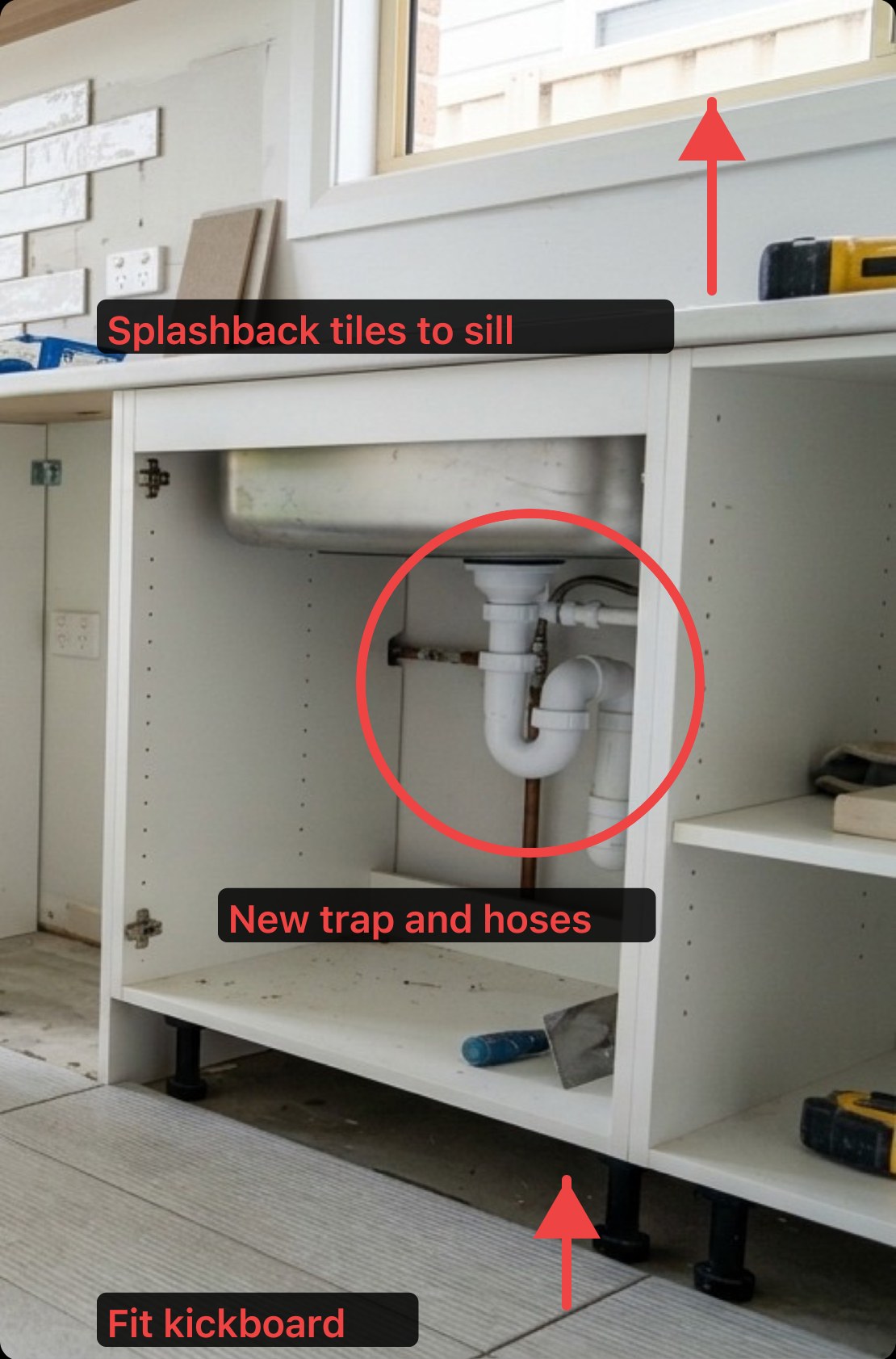
A laundry Before shot marked up in QuoteMate. Each mark matches a line on the quote, so the customer can see what they're paying for.
What works:
- Circle the problem, arrow to where the new thing goes. One idea per mark.
- Label in the customer's words. "New trap and hoses" beats "40mm P-trap + 2 flexi". The detail lives on the quote lines.
- Match the marks to the quote. If a mark has no line on the quote, add the line or drop the mark.
- Three or four marks a photo, tops. More to show? Take another photo of the next area.
- Keep the label clear of the thing you're pointing at. Put it on a plain patch of wall or floor and let the arrow do the pointing.
- Pick a colour that shows up. Red on a light wall; white or yellow on timber and dark brick.
Photos on the quote
Photos attached to a quote show on the online quote the customer opens, marked-up or not. They stay with that quote, so your customer's copy never changes; you can view them from the job page but not remove them there. Anything you add to the job later stays on the job.
Related
- Managing jobs and the pipeline
- Creating a quote
- How AI material suggestions work (Mate can build a quote from a site photo)